
Prepare these 3 things first
- From the download page, get the latest version. On Mac, drag it to Applications; on Windows, extract and run it.
- Have your BNI Connect email and password ready, and confirm Google Chrome can access the internet.
- To use schedules or mobile access, first complete Premium activation.
Sign in to BNI Connect
Enter your usual BNI email and password. The desktop app connects directly and never uploads your credentials to the Green Light cloud.
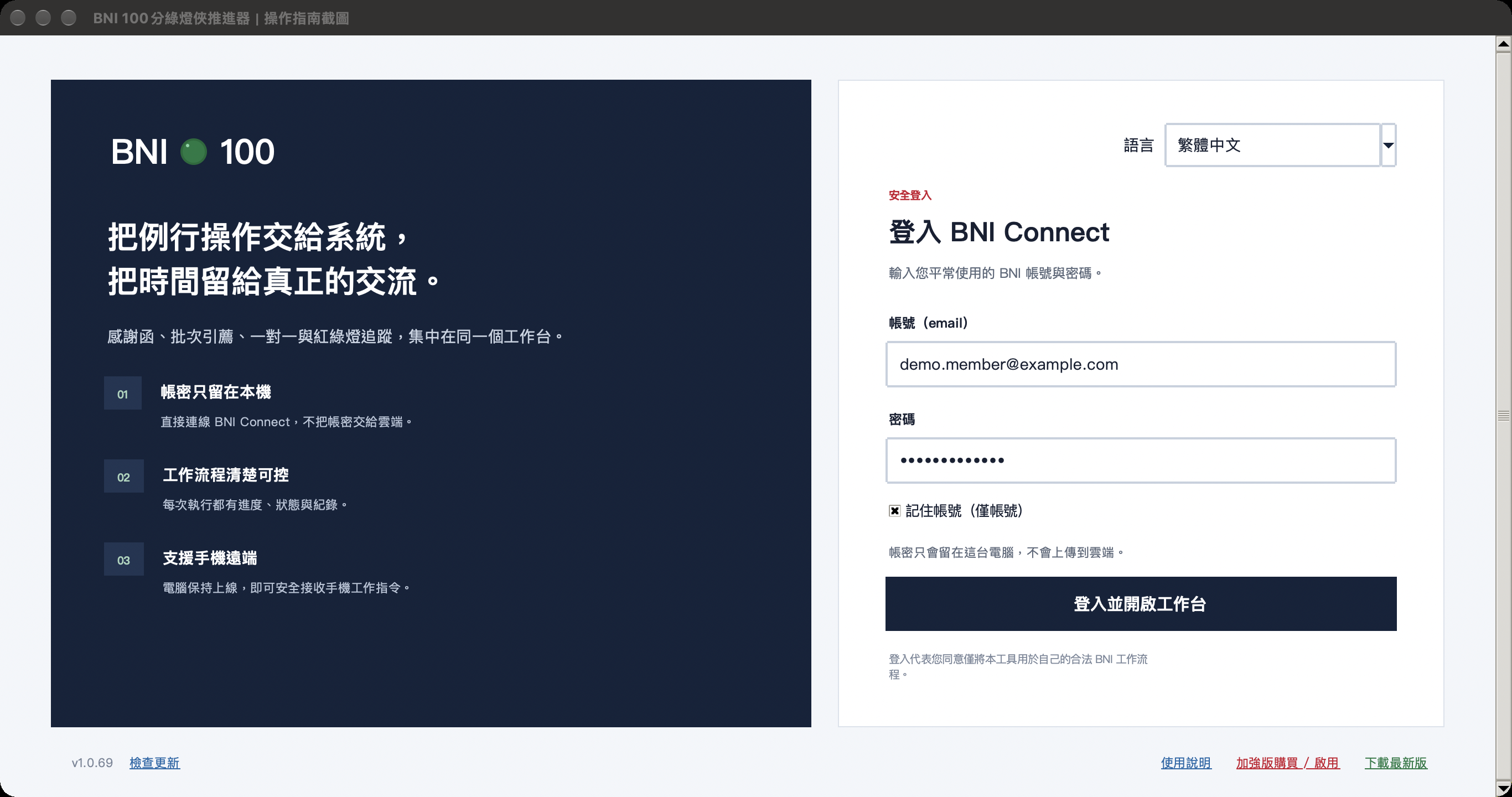
- Enter your BNI Connect email and password.
- Select “Remember email” on a personal computer. Do not select it on a shared computer.
- Select “Sign in and open dashboard” and wait about 10–20 seconds for Chrome to finish.
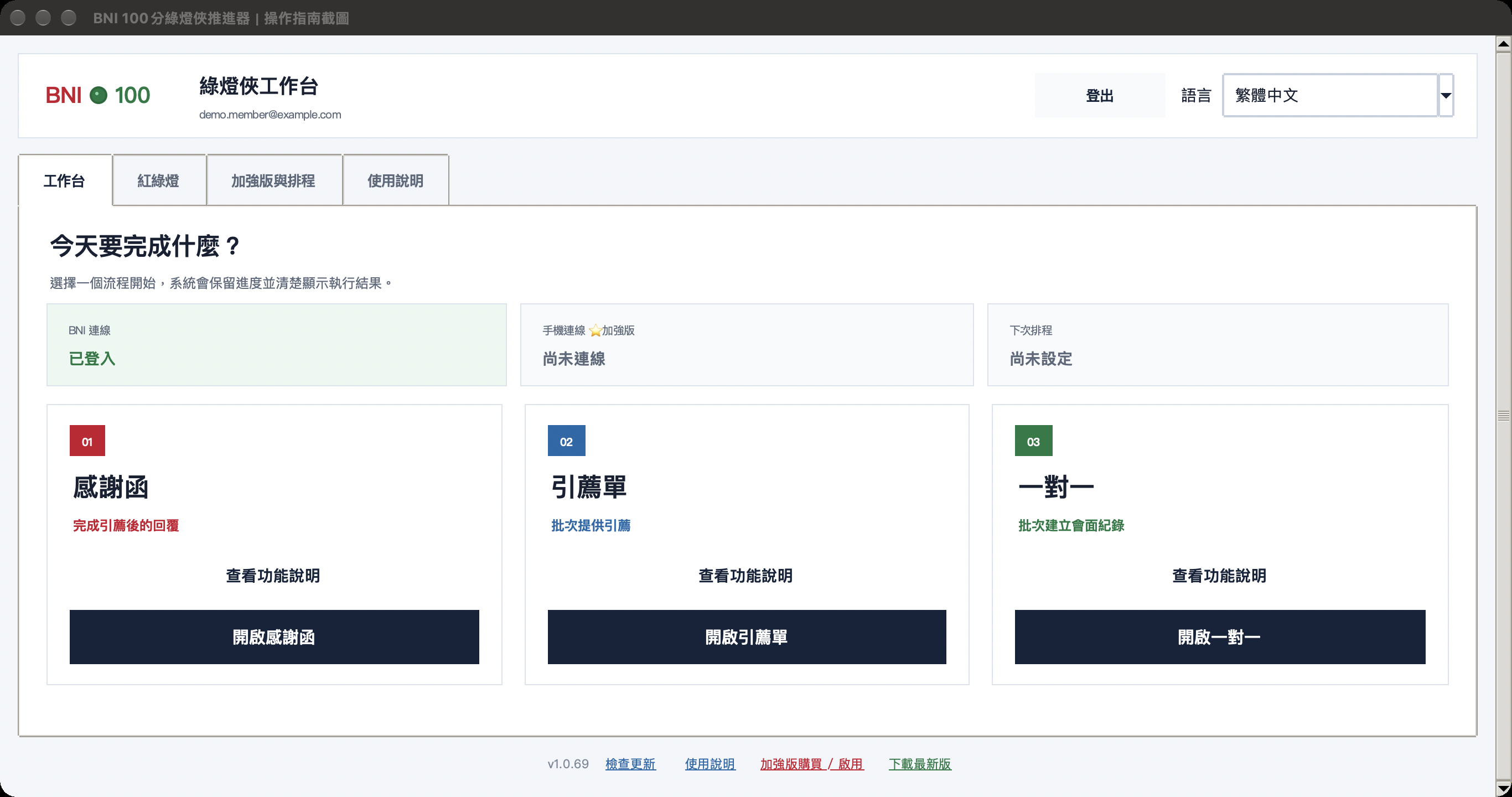
Dashboard overview
After signing in, review the three status indicators and start with thank-you notes, referrals, or one-to-ones.
Process thank-you notes
Automatic mode is fastest for consistent data. Review mode lets you confirm each amount, type, and message before submission.
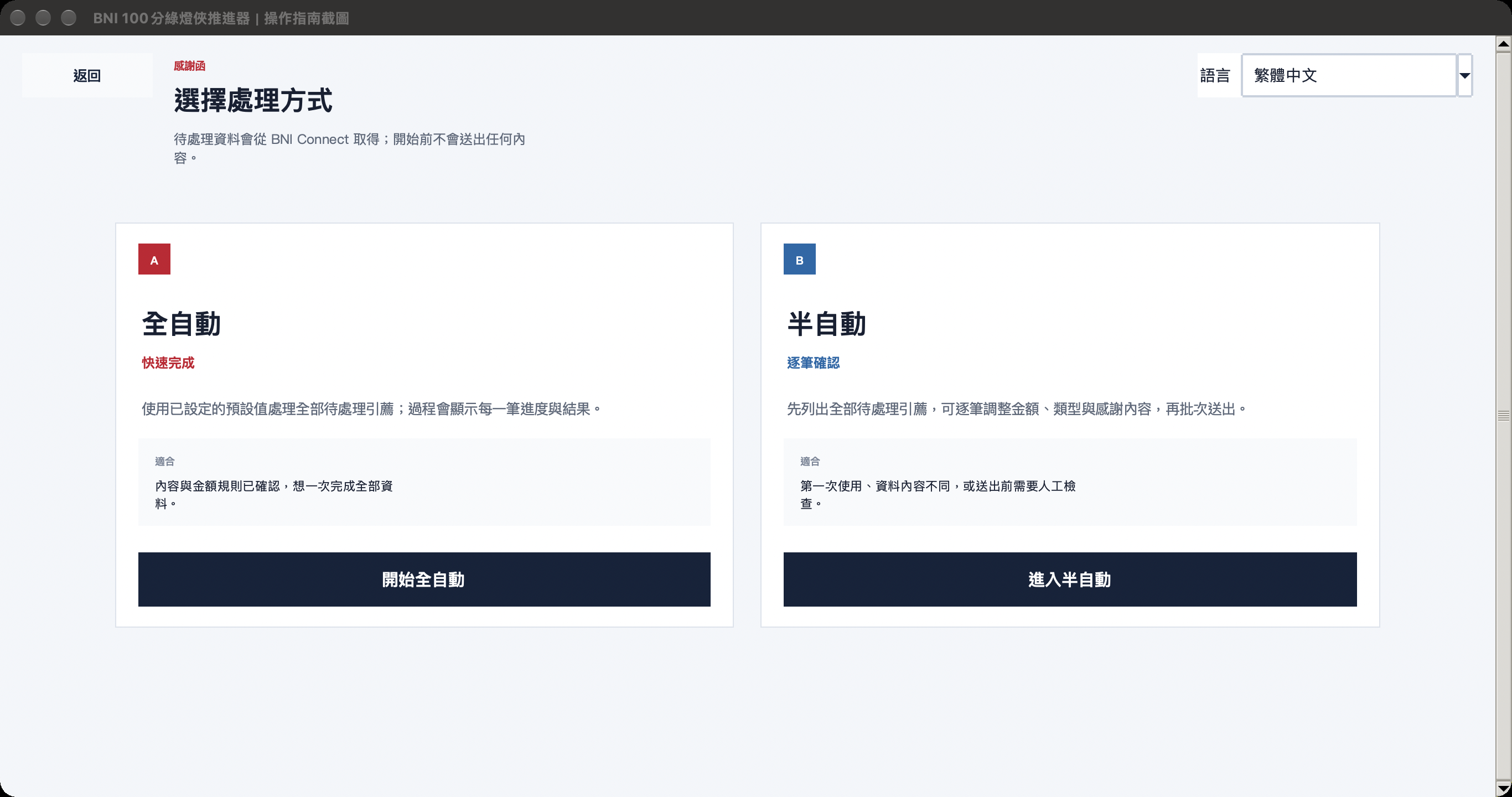
- On the dashboard, select “Open thank-you notes.”
- Choose “Automatic” when the data is ready, or “Review first” to inspect each item.
- Confirm the pending count, amounts, and types, then monitor progress and individual results.
Create referrals in batches
Select members, apply content, enter amounts, and submit once from the same screen.
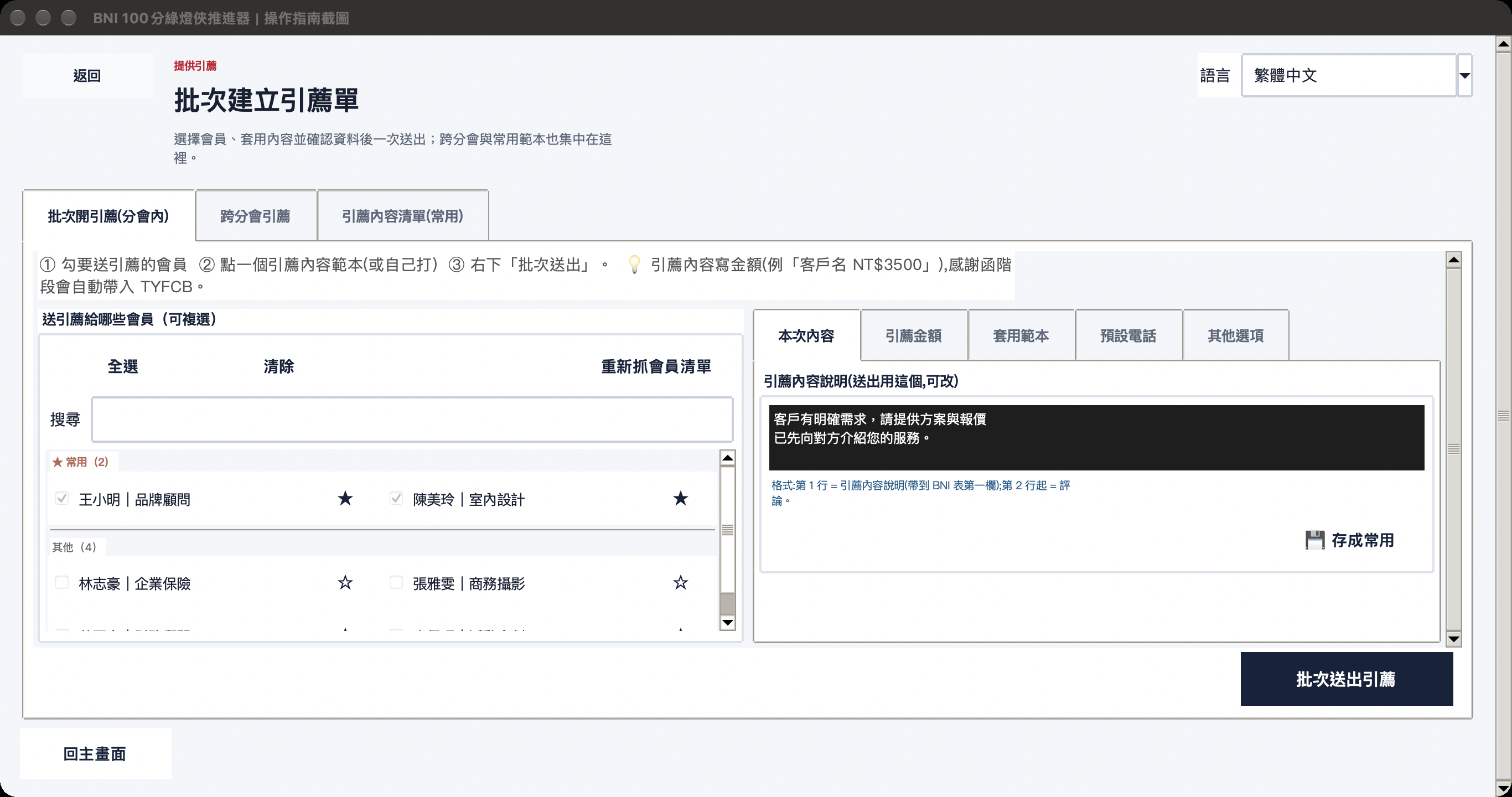
- Select the members who should receive referrals. Use the star to pin frequent members.
- 在「套用範本」選擇內容,套用後會回到「本次內容」,仍可自行修改。
- 在「本次內容」填文字,到「引薦金額」填金額;在「預設電話」確認電話,並到「其他選項」確認引薦類型與名片設定。
- Select “Submit referrals” at the lower right, then review the success or failure of each item.
Create one-to-one records in batches
The member list is shared with referrals and only needs to be fetched once. You can also save common topics, locations, and outlines.
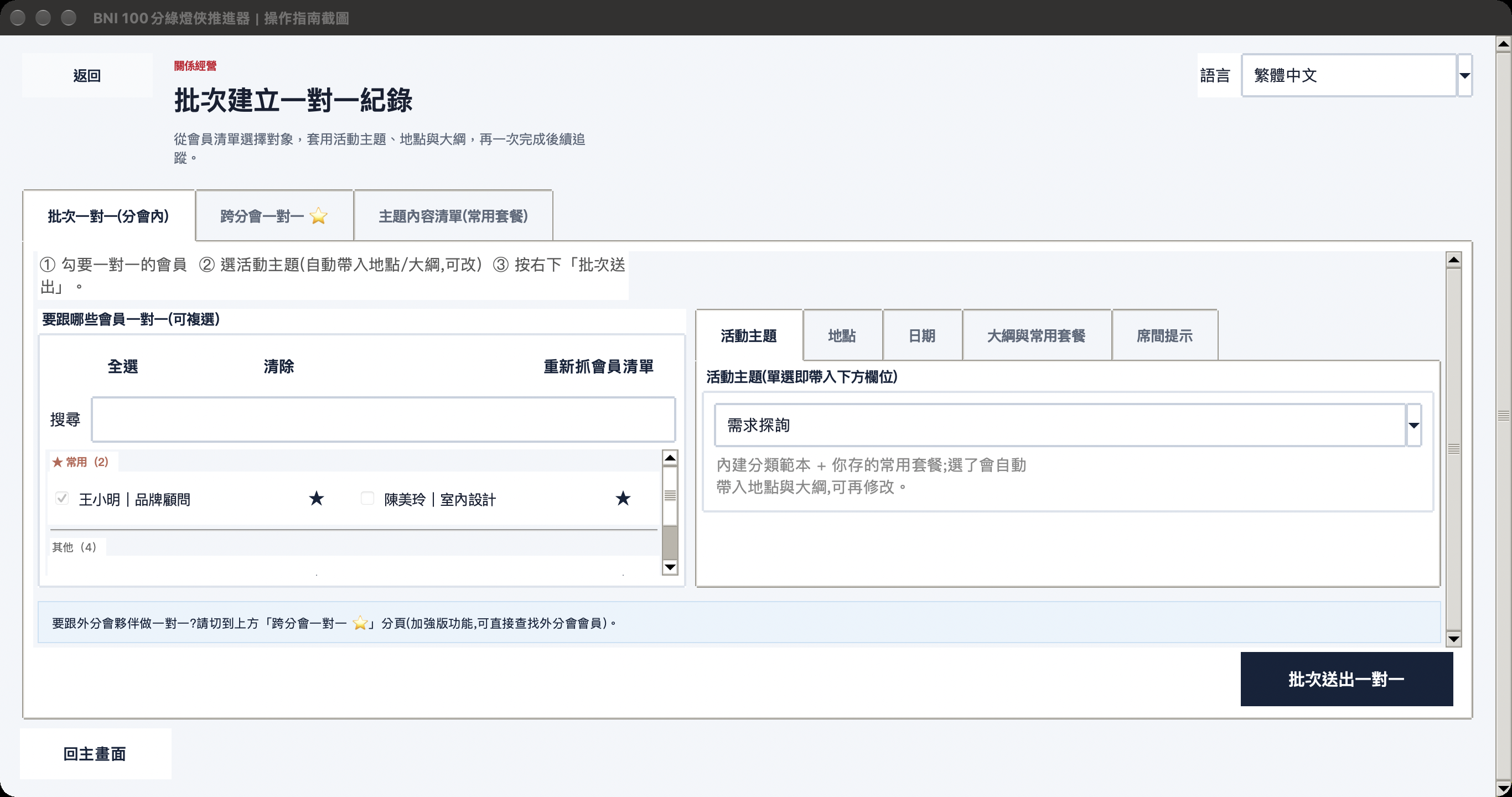
- Select one-to-one participants; you can search, select all, or clear.
- 在「活動主題」選擇內容,系統會帶入建議地點與大綱;到「地點」確認會面位置。
- 在「日期」確認會面日期;留空代表今天。到「大綱與常用套餐」檢查大綱,或保存可重用的套餐。
- Select “Submit one-to-ones” and review the execution log.
View your traffic-light score
Fetch the latest six months of PALMS and calculate the score instantly. Each row shows what is still needed.
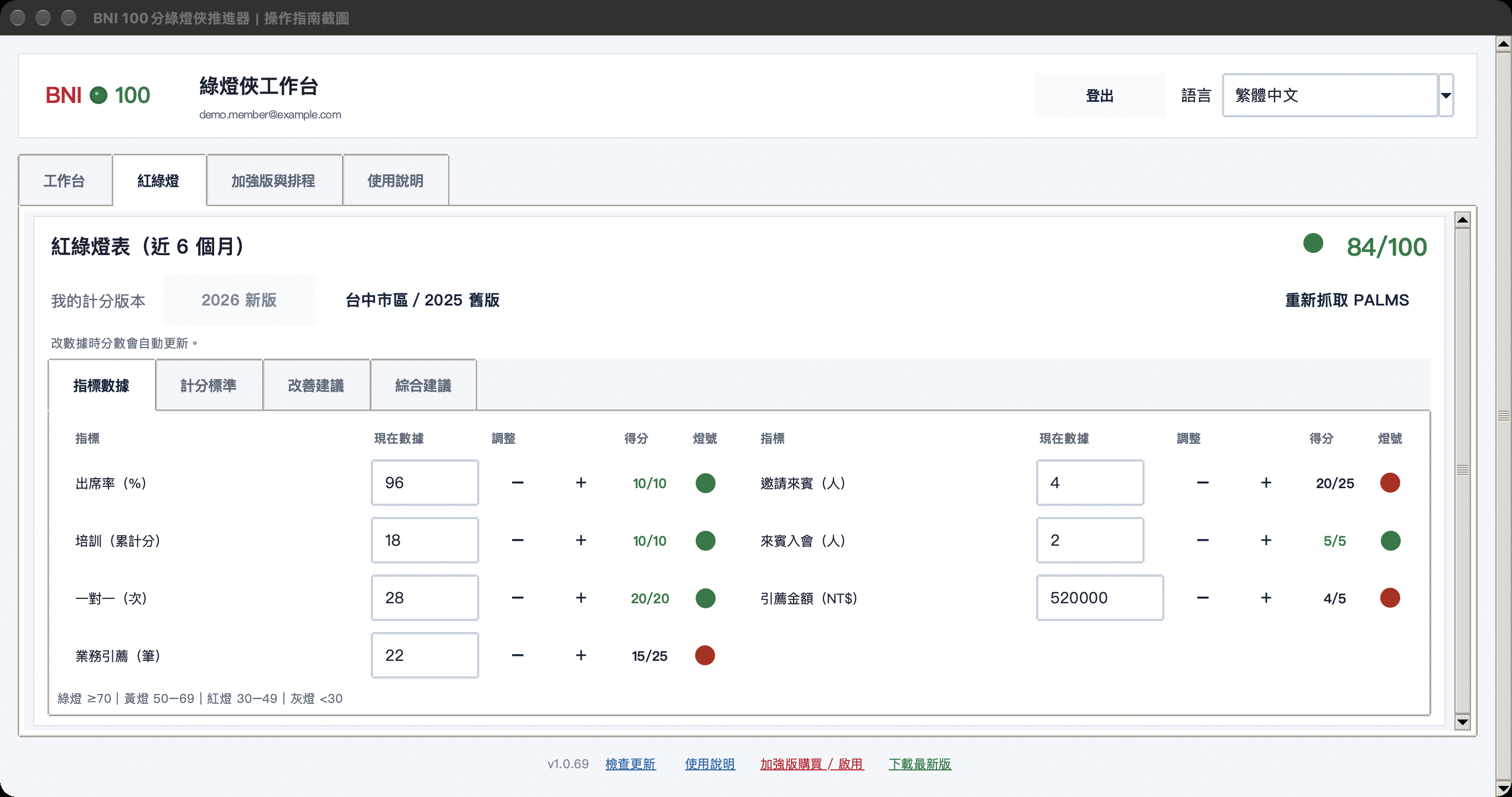
- Open the “Traffic Light” tab and wait for PALMS to load.
- Enter values manually if data is missing or different; the total recalculates immediately.
- 到「計分標準」選擇要查看的指標,再依「改善建議」補足缺口,觀察總燈號是否升級。
Activate Premium
After payment, use online activation. If the order and machine code differ, specify the order or paste the license manually.
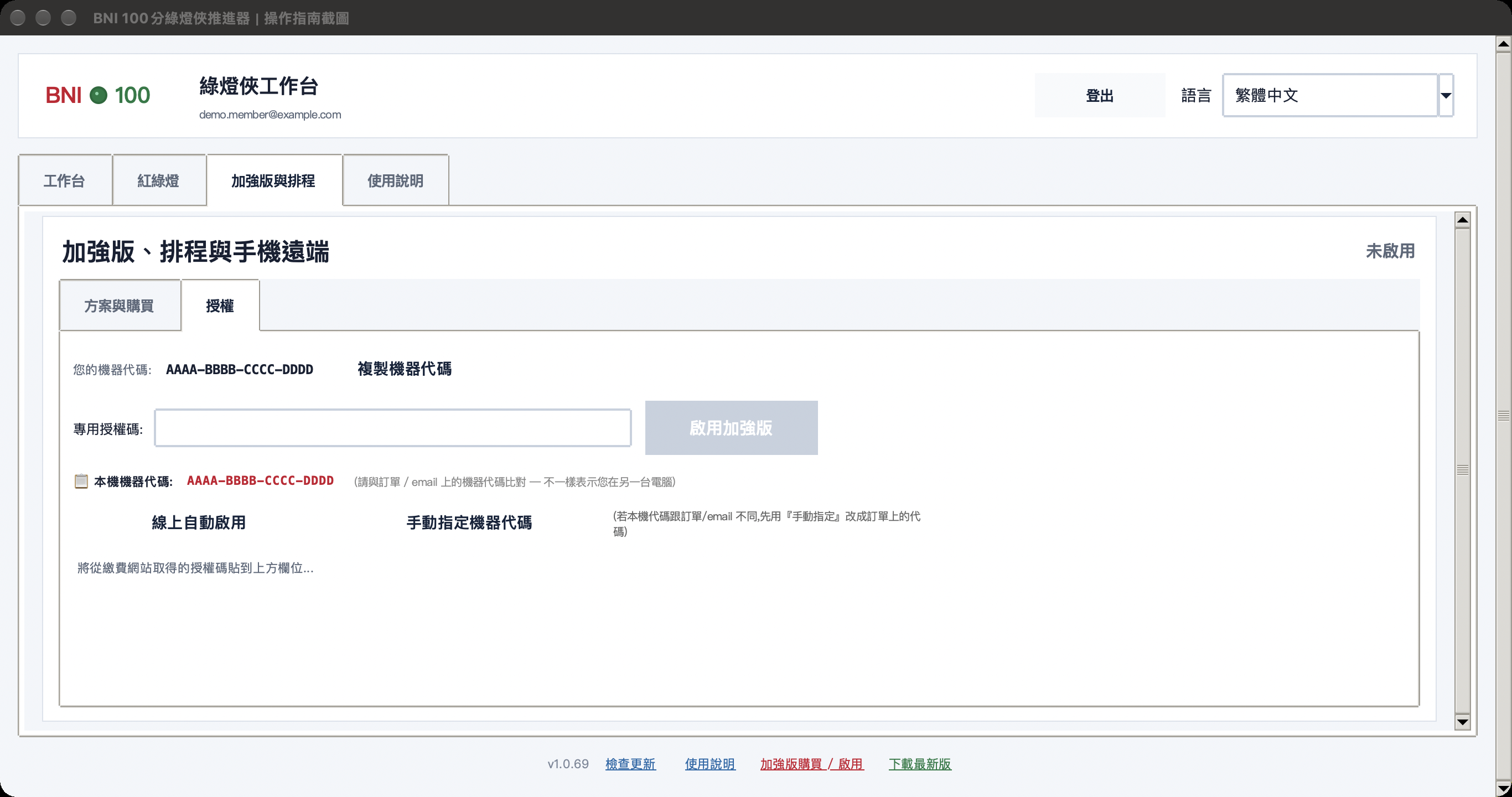
- 切到「加強版與排程」的「授權」頁籤,複製機器代碼。
- Go to the purchase page, choose a plan, and complete payment.
- Return to the app and select “Online activation.” If no order is found, paste the license from your email.
- Activation is complete when “Premium active” and an expiration date appear.
Set up background mode, schedules, and mobile access
With Premium active, the computer can remain online for mobile tasks and run jobs on selected days and times.
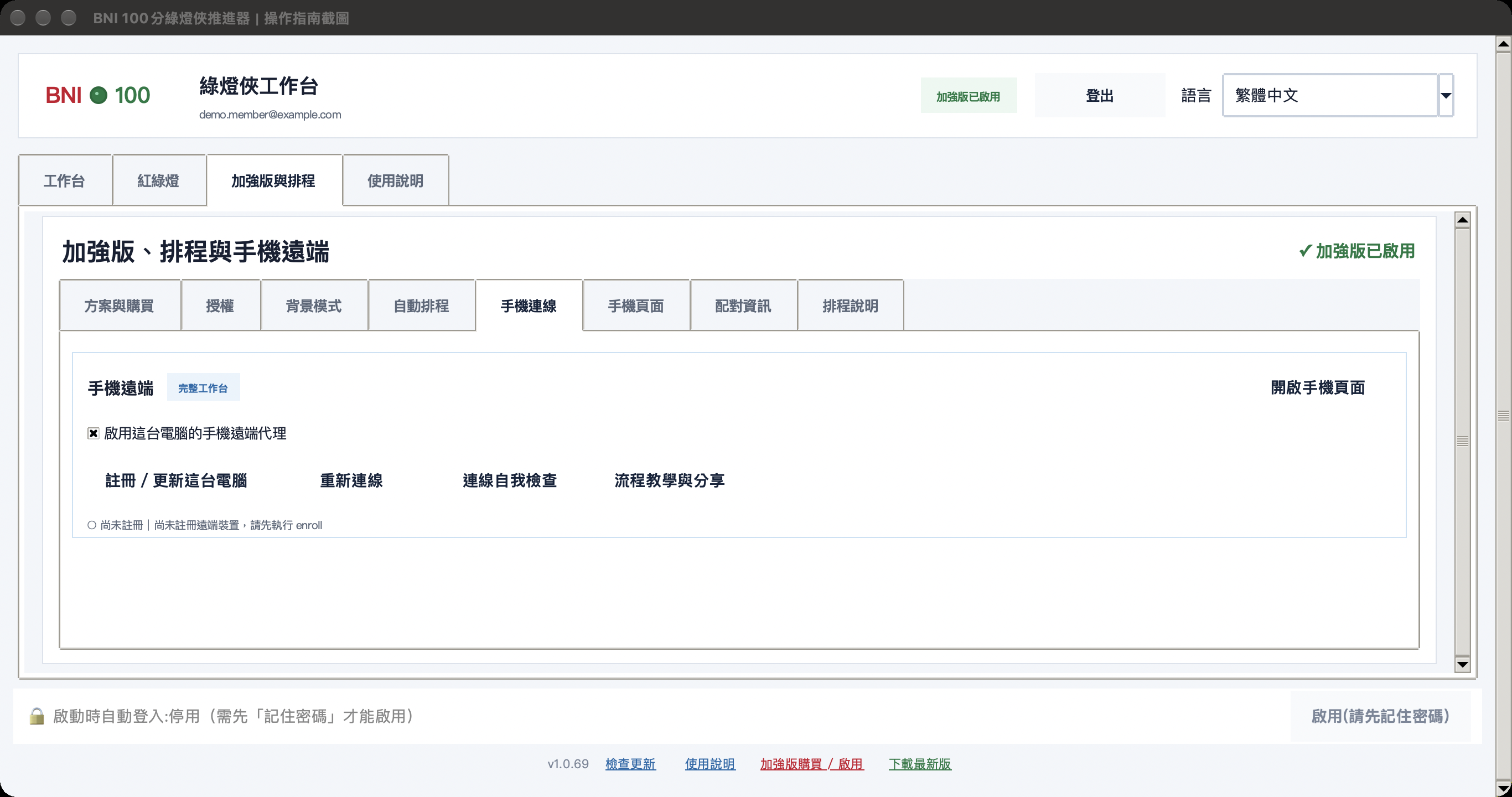
- For automatic operation, select “Remember password” on sign-in, then enable the required background options.
- 到「手機連線」勾「啟用這台電腦的手機遠端代理」,按「註冊/更新這台電腦」。
- Enter the one-time pairing code in the mobile console within 10 minutes.
- Select “+ Add schedule,” set the task, time, and weekdays, and confirm it is enabled.
- Keep the computer on, the app running, and the network connected. The phone shows it offline while the computer sleeps.
FAQ and quick troubleshooting
Sign-in remains on the Chrome screen
Confirm the credentials work on BNI Connect, then close and reopen the app. Update Chrome if it is outdated.
The member list is empty
In Referrals or One-to-one, select “Refresh member list.” If it stays empty, sign in to BNI again.
The phone shows the computer as offline
Confirm the desktop app is open, the remote agent is enabled, and the network works, then select “Reconnect.” A sleeping computer is also offline.
A scheduled task did not run
Check that the schedule is enabled, the password is securely saved, and the computer is on and awake.