Learning center

Get started in 10 minutes, even on your first use

Desktop and mobile instructions are separated. Every step includes current screenshots, button locations, and troubleshooting—no technical knowledge required.

Current app screenshots Complete mobile pairing flow Print or save as PDF

First run

The correct first-time setup order

Your phone does not replace the desktop app. It securely sends tasks to your authorized computer while it stays online.

  1. Install the desktop appInstall the latest version on Mac or Windows.
  2. Sign in to BNI ConnectCredentials stay on your computer.
  3. Activate PremiumEnable schedules and mobile access.
  4. Register and pairGenerate a one-time pairing code on the desktop and enter it on your phone.
  5. Start using your phoneConfirm the computer is online before sending a secure task.
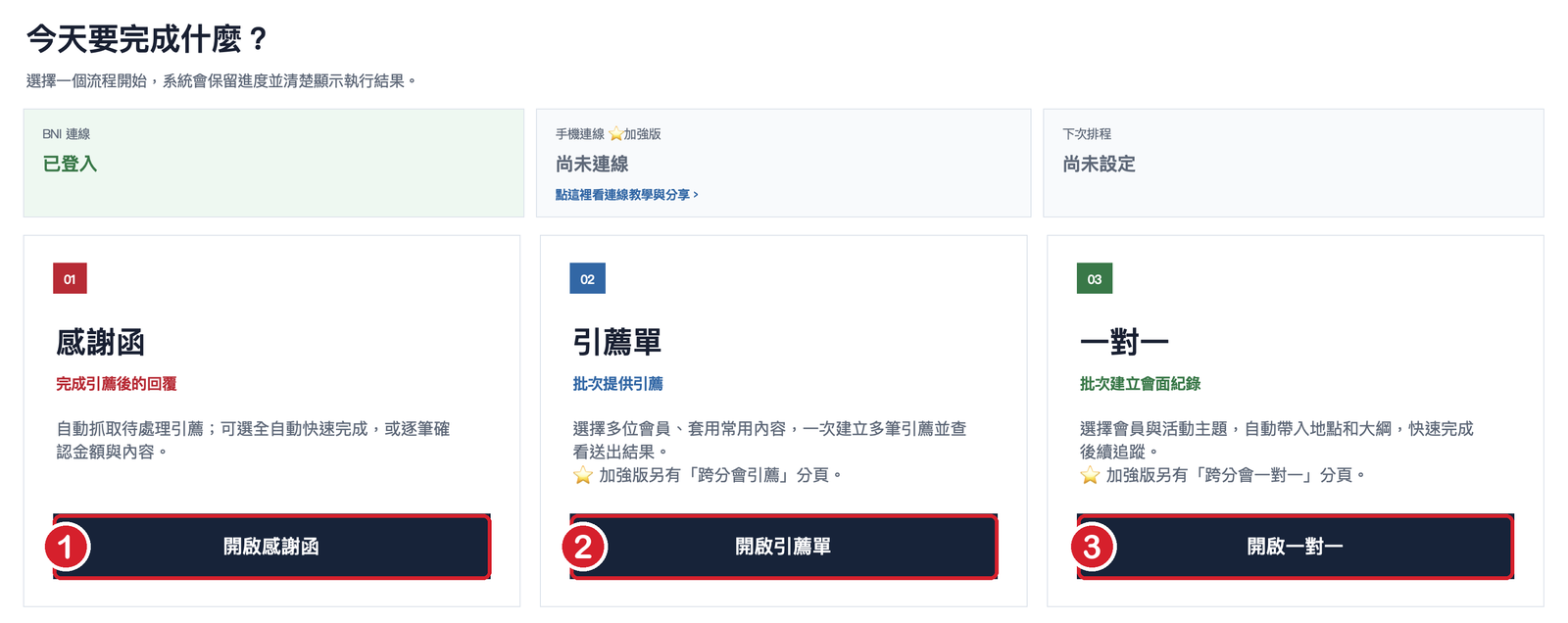
Easy guide: the three big buttons on the home screen

Easy manual

Large-print easy guide

For seniors who are new to computers: big text, big pictures, one action per step. It covers three tasks only: sending many referrals at once, one-to-ones for several people over several days, and replying to many thank-you slips at once.

  • 11 enlarged, numbered screenshots
  • About 3 minutes per task
  • Print it and keep it by the computer
Open the easy guide
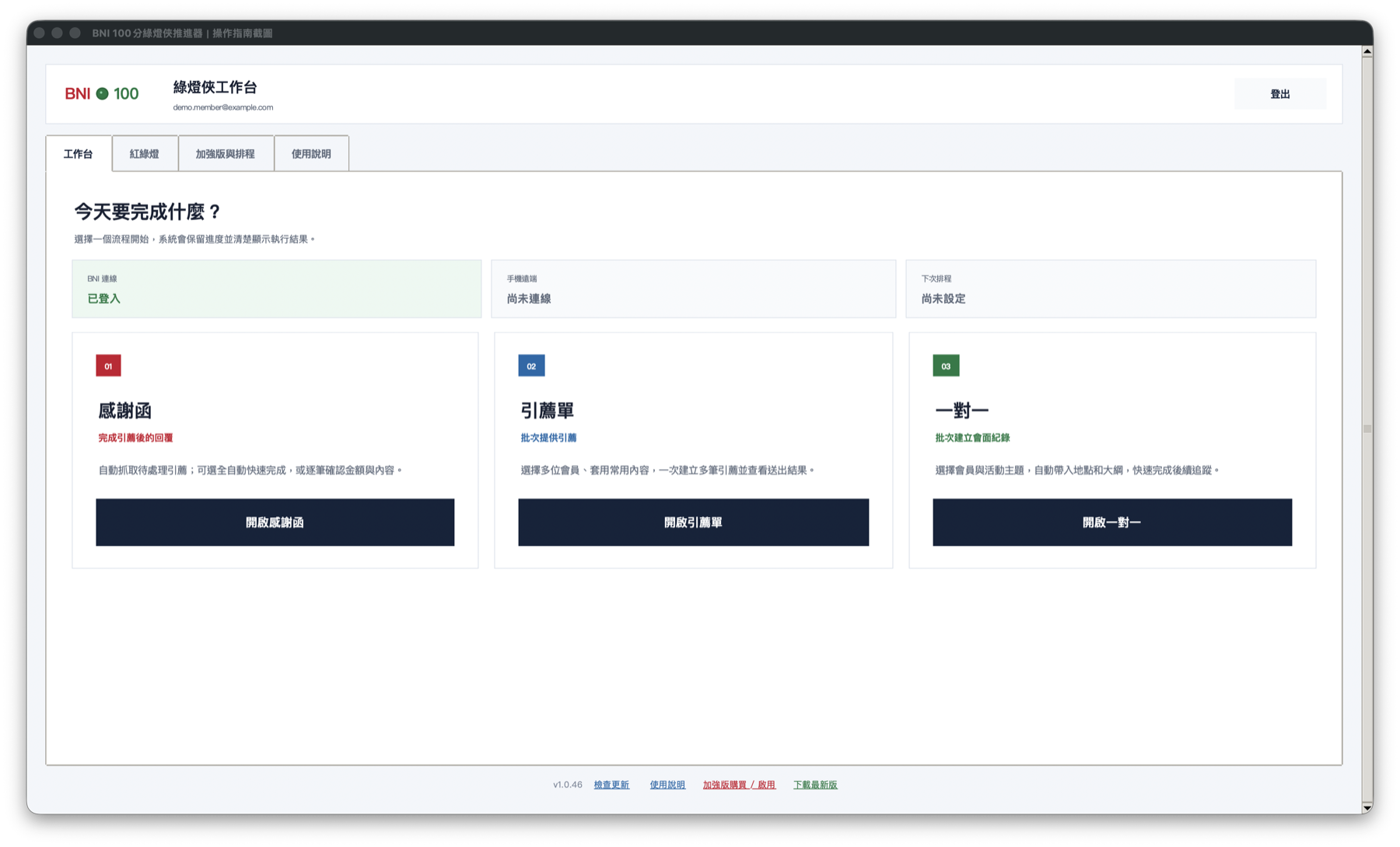
新版桌機工作台畫面

Desktop manual

Complete desktop visual guide

Covers download, sign-in, thank-you notes, batch referrals, one-to-ones, traffic light, Premium, schedules, and mobile access.

  • 8 app screenshots
  • Mac/Windows
  • Full troubleshooting
Start the desktop guide
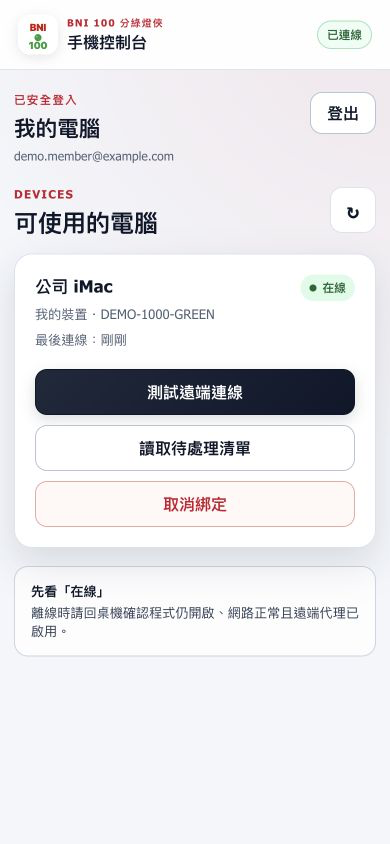
手機控制台線上電腦畫面

Mobile manual

Complete mobile user guide

Email verification, computer pairing, connection tests, encrypted data, sharing permissions, job history, and secure revocation.

  • Mobile screenshots
  • iPhone/Android
  • Sharing permissions
Start the mobile guide

Need setup details or troubleshooting?

Open the desktop FAQ for setup details and troubleshooting in your selected language.

Open desktop FAQ