
Complete these desktop steps before using your phone
- Install the latest desktop app and sign in to BNI Connect successfully.
- Activate Premium. For remote access, select “Remember password” when signing in.
- Under “Premium & Schedules → Mobile access,” enable the agent and complete “Register/update this computer.”
- Keep the computer on, the app open, the network connected, and prevent sleep.
綁定使用者信箱
The mobile console has no separate password. A one-time code verifies your account each time.
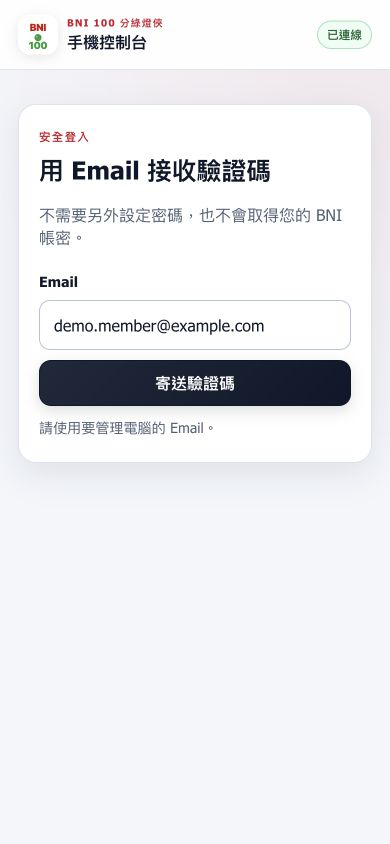
- Open the mobile console。
- 輸入自己的使用者信箱,按「寄送驗證碼」。
- Keep this tab open and check your inbox for the six-digit code.
Enter the six-digit verification code
The code expires and works only once. Return to the previous screen to request another if needed.
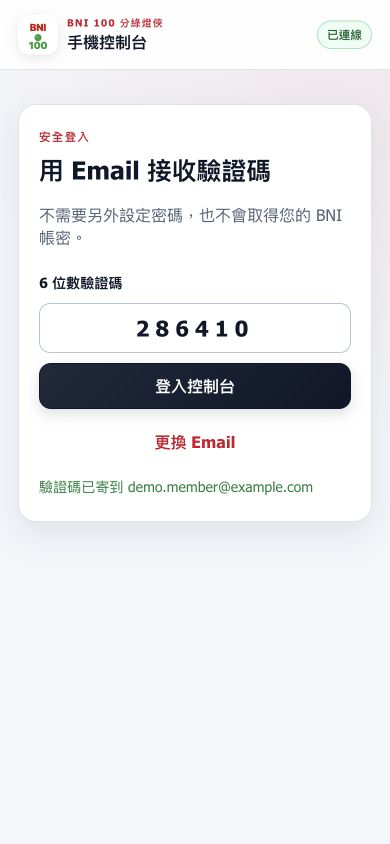
- Enter the six-digit code from your email.
- 按「登入控制台」。若 Email 不對,按「更換使用者信箱」。
- If the email does not arrive, check spam and wait one minute before resending.
Enter the desktop pairing code
The one-time pairing code links this email to a computer and expires after 10 minutes.
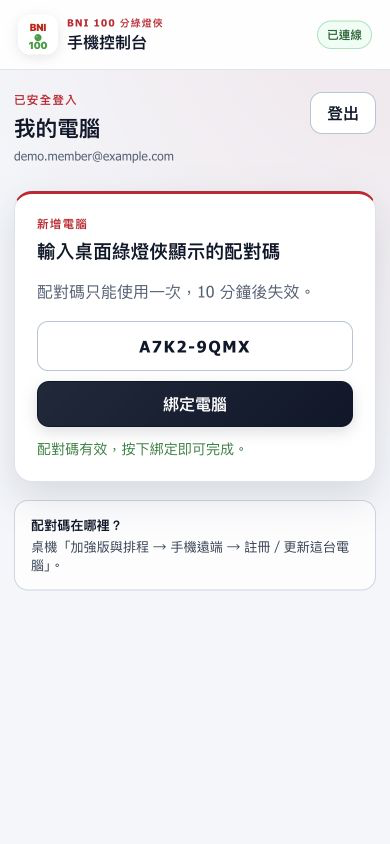
- On the desktop, open “Premium & Schedules → Mobile access.”
- Select “Register/update this computer” to get a one-time code.
- Enter the code on your phone and select “Pair computer.”
- After pairing, the computer appears under “Available computers.”
Choose a computer and sync the workspace
Confirm the computer is online, open “Sync workspace” from the upper-left menu, choose it, and select “Sync now.”
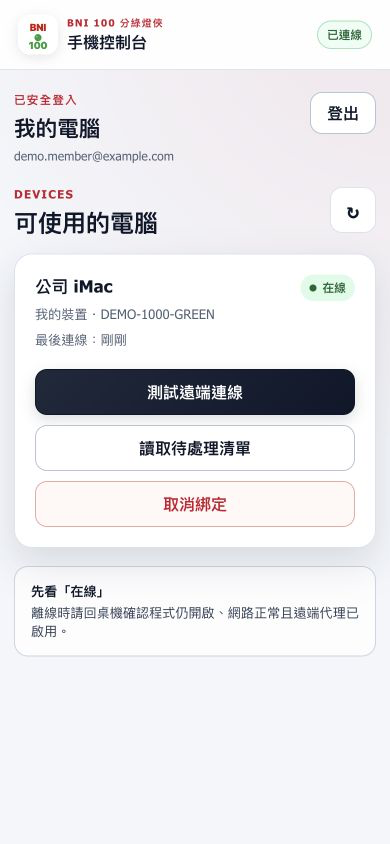
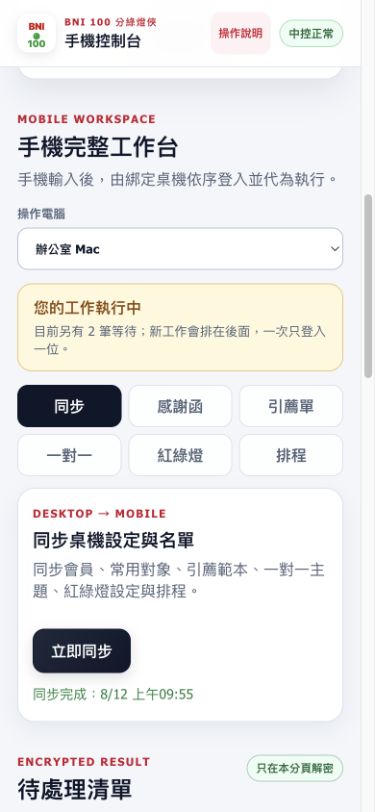
- Confirm the computer card says “Online”; refresh at the upper right if needed.
- First select “Test remote connection.” After it completes, open a workspace feature from the menu.
- Choose the computer and select “Sync now.” Members and topics then appear as input suggestions.
Submit thank-you notes and referrals
Plain text appears only on your phone and desktop. The control server relays only encrypted envelopes.
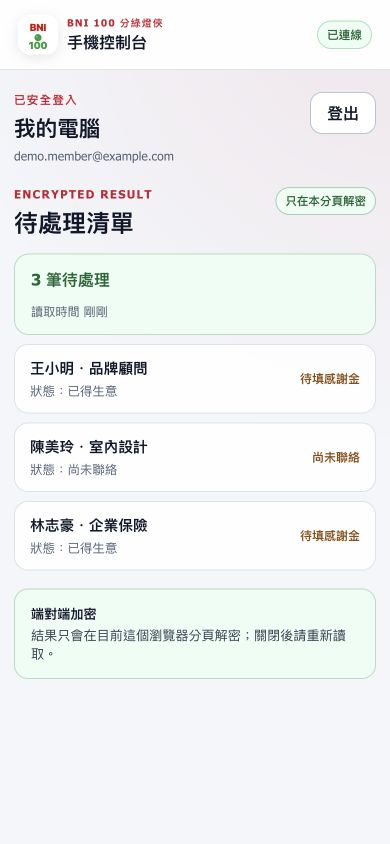
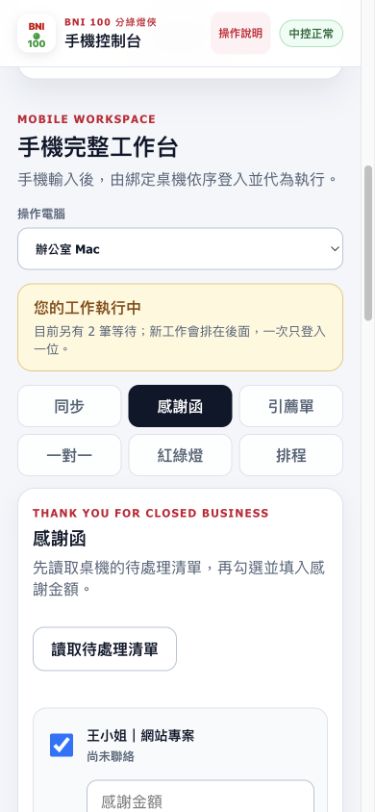
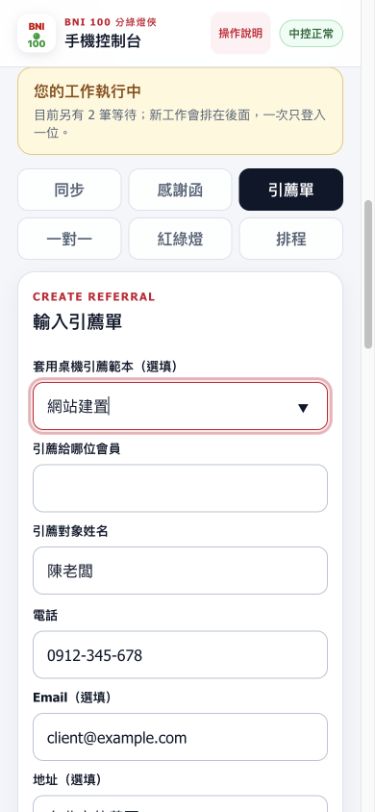
- Thank-you notes: after loading pending items, set a default thank-you amount that fills every item, then adjust any item individually. Select all, select none, or select only items without an amount for quick batch selection. Amounts survive automatic refreshes, so confirm everything and submit together.
- For equal amounts, enter one value under “Fill the same amount” and select “Apply to selected.”
- Referrals: choose a member, enter the contact, phone, email, address, and details, then confirm.
- After submission, open “Recent jobs” to see queue position, progress, and item results. A menu badge appears while jobs are active.
One-to-ones, traffic light, and schedules
These features are performed or stored by the selected desktop; the phone never signs in to BNI directly.
Multiple users can work without competing for sign-in
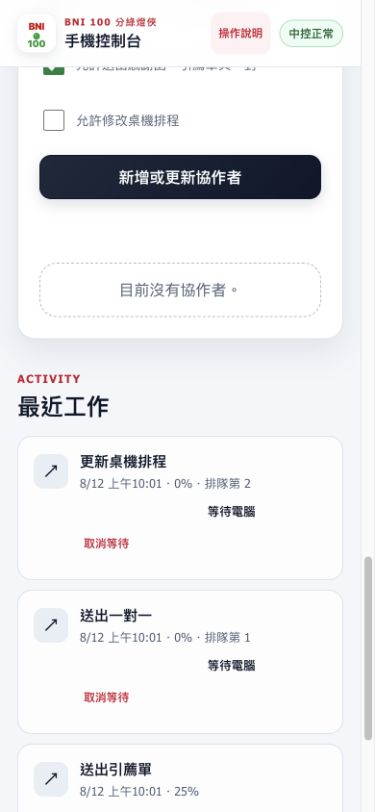
- Multiple people can sign in to the mobile console and send jobs to the same computer.
- The desktop runs one job at a time; later jobs show “Queue position N.”
- The next job starts only after the previous one succeeds, fails, or is canceled, so two BNI sessions never run together.
- If a submission loses connection, it is marked “Manual confirmation required” and is not retried automatically to prevent duplicates.
Share a computer with collaborators
Assign a computer, permissions, and expiration date to their email. They use their own account to sign in.
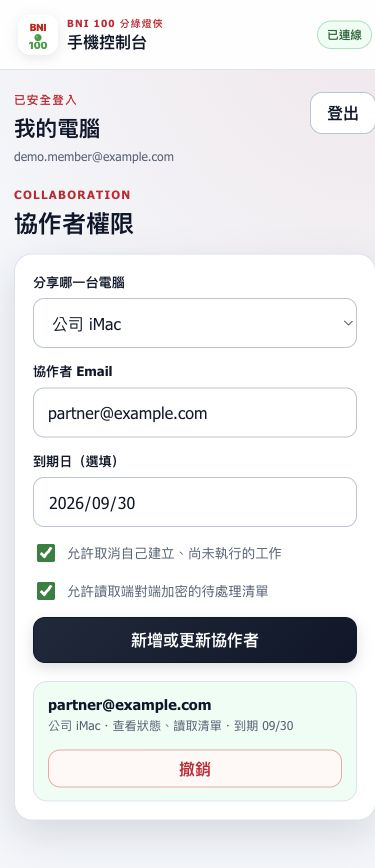
- Choose a computer and enter the collaborator email.
- Set an expiration date; temporary collaborators should not keep permanent access.
- Grant only what is needed: workspace sync, pending-list access, BNI submissions, or schedule management.
- Ask them to use the same mobile console and receive a verification code at that email.
- Select “Revoke” on the collaborator card when access is no longer needed.
View recent jobs
Queue position, completion, failure, time, progress, and item count remain in history.
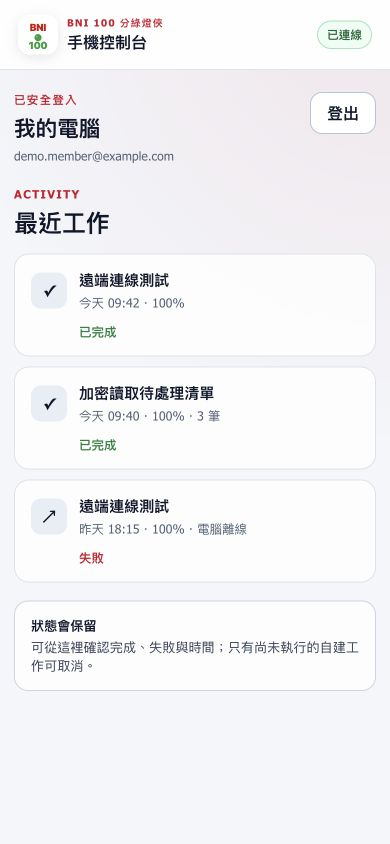
- After submitting, open “Recent jobs.” Waiting jobs show their queue positions.
- For failures, check the reason first. If offline, check the desktop app and network; if verification expired, sign in again.
- If a list was read but content is missing, remain in the original tab. Run the task again if the tab was closed.
How to disconnect safely
- For a temporary break, select “Sign out” on the phone.
- To stop sharing, select “Revoke” under Collaborator permissions.
- If a phone is lost or retired, select “Unpair” on the computer card. All collaborator access is also revoked.
- To stop remote access only, disable the mobile remote agent on the desktop.
Mobile FAQ
The email verification code did not arrive
Check the email spelling, spam folder, and mailbox capacity. Wait one minute before resending and do not click repeatedly.
The computer remains offline
Confirm the desktop app is open, the remote agent is enabled, the computer is awake, and internet works; then select “Reconnect.”
Why does a job show “Queue position 2”?
A computer allows one active BNI job at a time. Your job starts automatically after the previous one; do not submit it again.
Why does a submission say “Manual confirmation required”?
If the desktop disconnects during submission, the system cannot confirm whether BNI received it. It will not retry automatically; check BNI first.
How many people can I share with?
Add collaborators according to your plan and management needs. Keep only necessary accounts, set expiration dates, and revoke unused access regularly.